Most Microsoft 365 security advice still reads like it’s 2022: turn on MFA, block risky sign-ins, call it done. That advice isn’t wrong, but it’s no longer sufficient on its own. The way attackers actually get into Microsoft 365 tenants has shifted, and a security posture built entirely around passwords and basic MFA has a real, well-documented blind spot.
This guide covers the practices that actually matter right now, in the order they matter, with the concrete steps to implement each one — not just what to turn on, but where to find it and how to roll it out without breaking something your business depends on.
Why “Just Turn On MFA” Isn’t the Whole Answer Anymore
MFA still blocks the overwhelming majority of automated, credential-based attacks, and if a business has done nothing else, enforcing it everywhere remains the single highest-leverage move available. But Microsoft’s own threat intelligence attributes a large and growing share of MFA-bypass breaches to a different technique entirely: session token theft, often through adversary-in-the-middle (AiTM) phishing.
Here’s how it works. An attacker sends a convincing phishing email pointing to a fake Microsoft login page sitting behind a reverse proxy. A user enters their password and completes MFA exactly as they normally would — the login even succeeds. But the proxy has quietly captured the session token Microsoft issued after that successful login, and the attacker replays it from their own machine. They’re in, without ever needing the password again and without tripping any MFA prompt themselves.
Standard MFA methods — SMS codes, voice calls, even authenticator app push notifications — don’t stop this, because the attacker isn’t guessing the second factor, they’re stealing the token issued after it succeeded. This is exactly why the rest of this guide leans so heavily on phishing-resistant authentication and Conditional Access, not just “MFA is on.”
Identity and Access: MFA and Conditional Access
MFA is still the foundation everything else in this section builds on — see our full MFA rollout guide if you haven’t enforced it yet. Once it’s on everywhere, Conditional Access is what turns it into something closer to Zero Trust: instead of trusting a device or session just because it’s inside the network, every sign-in gets re-evaluated against real-time risk signals.
Security Defaults vs. Conditional Access. Microsoft’s free Security Defaults is a reasonable baseline for a very small business with no dedicated IT support — it’s a single on/off switch that requires MFA broadly with zero configuration. It cannot be customized, and it can’t require phishing-resistant methods, factor in device compliance, or treat admin accounts differently from regular users. Conditional Access, which requires Entra ID P1 (included in Microsoft 365 Business Premium), replaces that blunt switch with policy-driven rules evaluated on every sign-in — who, from where, on what device, at what risk level.
Phishing-resistant methods, ranked by strength:
- FIDO2 security keys — physical hardware keys, the strongest option available and immune to AiTM token theft because the cryptographic proof is bound to the legitimate domain
- Windows Hello for Business — device-bound biometric or PIN authentication, similarly resistant
- Certificate-based authentication — strong, but requires existing PKI infrastructure most SMBs don’t have
- Authenticator app (push notification) — better than SMS, but still vulnerable to both AiTM and “push fatigue” attacks where a user is bombarded with prompts until they approve one out of frustration
- SMS and voice call codes — the weakest widely-used option, vulnerable to SIM swapping in addition to AiTM interception. Microsoft has been actively steering tenants away from these toward stronger methods, and they shouldn’t be treated as your default going forward
Setting up a Conditional Access policy requiring MFA for all users:
- Go to the Entra admin center (entra.microsoft.com) → Protection → Conditional Access → Policies → New policy
- Name it clearly (e.g., “Require MFA — All Users”)
- Under Assignments → Users, include “All users” and exclude your break-glass accounts (see below)
- Under Target resources, select “All cloud apps”
- Under Grant, require multi-factor authentication (or, with Entra ID P1, require an authentication strength that specifies phishing-resistant methods for higher-risk scenarios)
- Set the policy to Report-only first, review sign-in logs for a week or two to catch anything that would break, then switch it On
Break-glass accounts. Every tenant needs at least two dedicated emergency-access accounts, excluded from Conditional Access and MFA policies, with permanent Global Administrator rights, credentials stored offline (not in an email inbox or a cloud-synced password manager), and alerts configured so any sign-in to these accounts gets noticed immediately. Test access to them at least once a year. Without one, a single misconfigured policy or an MFA service outage can lock an entire business out of its own tenant with no way back in.
Admin Account Protection: Least Privilege and Just-in-Time Access
Global Administrator accounts are the single highest-value target in a Microsoft 365 tenant — compromise one, and an attacker has the keys to everything. Most small businesses have more standing Global Admins than they realize, often because it was the easiest role to hand someone during setup and nobody’s revisited it since.
Audit how many Global Admins you actually have: Entra admin center → Roles and administrators → Global Administrator. Most SMBs find three to five people with permanent Global Admin rights when only one or two actually need it day to day.
Assign least-privilege roles instead for anyone who only needs partial access — User Administrator for onboarding staff, Exchange Administrator for mail flow, Security Administrator for reviewing alerts, and so on, rather than defaulting everyone to full Global Admin.
Privileged Identity Management (PIM), available with Entra ID P2 or Entra ID Governance, replaces standing admin access with just-in-time activation: an admin requests the role, provides a reason, passes MFA, and the role expires automatically after a set window (commonly 4-8 hours) instead of sitting active indefinitely. For a small business, this is usually worth setting up specifically for Global Administrator and any other genuinely high-privilege roles, even if the broader Entra ID Governance suite is overkill.
This same permissions review is exactly what needs to happen before rolling out Microsoft 365 Copilot. Copilot respects your existing permissions rather than creating new ones, which means any oversharing or excessive access already sitting in your tenant gets surfaced faster once Copilot can search across it, not fixed automatically by turning it on.
Email Security: Defender for Office 365 and Domain Authentication
Defender for Office 365 provides three core protections worth confirming are actually turned on and correctly scoped, not just present by default: Safe Attachments (detonates suspicious files in an isolated environment before delivery), Safe Links (rewrites URLs so they’re checked both at delivery and again at the moment someone actually clicks), and anti-phishing / impersonation protection (flags messages spoofing your own domain or specific executives). These are configured in the Microsoft Defender portal (security.microsoft.com) under Email & Collaboration → Policies & rules.
SPF, DKIM, and DMARC work together and all three matter — none of them alone is sufficient:
- SPF is a DNS record listing which servers are allowed to send mail on your domain’s behalf
- DKIM cryptographically signs outbound mail so it can’t be altered or forged in transit — it is not enabled by default for custom domains in Microsoft 365 and has to be turned on explicitly
- DMARC ties the two together, telling receiving mail servers what to do when SPF or DKIM fail (monitor only, quarantine, or reject) and sends you reports showing who’s actually sending mail using your domain
Enable DKIM: Exchange admin center → Mail flow → DKIM, select your domain, and enable signing. Microsoft provides a CNAME record to publish in your DNS; signing begins once it’s verified.
Publish a DMARC record: add a TXT record at _dmarc.yourdomain.com. Start in monitor mode to see what’s actually sending mail as your domain before you start blocking anything:
v=DMARC1; p=none; rua=mailto:[email protected]A large share of domains that have a DMARC record at all are still sitting at p=none, which reports on spoofing but doesn’t stop it. After reviewing reports for a few weeks and confirming every legitimate sender is accounted for, tighten the policy to p=quarantine and eventually p=reject.
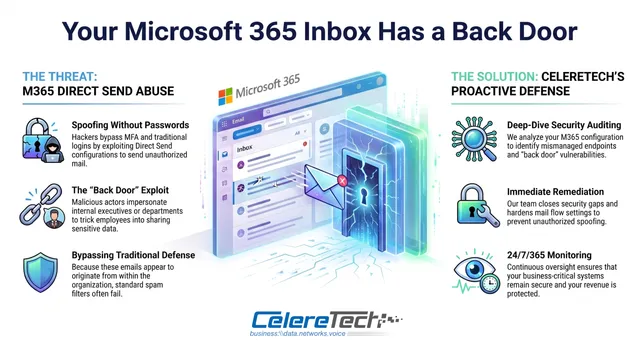
A specific Microsoft 365 gap worth knowing about: Exchange Online’s Direct Send feature allows devices like office printers to send mail internally without authentication — and because it routes through Microsoft’s own trusted infrastructure, it can bypass SPF, DKIM, and DMARC checks entirely, letting an attacker who knows your domain send convincing internal-looking phishing with no compromised account required. We cover the full audit-and-remediation process, including the exact PowerShell to close it, in a dedicated breakdown of the Direct Send vulnerability — it’s a fifteen-minute fix once you’ve confirmed nothing legitimate depends on it staying open.
Data Protection: Sensitivity Labels and Data Loss Prevention
Sensitivity labels (Microsoft Purview) are metadata a user or automated rule applies to a document — Public, Internal, Confidential — that can carry encryption and access restrictions with it wherever the file travels, including outside your tenant.
Data Loss Prevention (DLP) policies scan content for specific sensitive data types and block, warn, or log when that data is about to leave the organization, regardless of whether the file is labeled. For most small businesses, DLP delivers more immediate, concrete protection than labeling alone, since it catches the most damaging leaks — a spreadsheet of Social Security numbers emailed to the wrong address — without depending on every employee remembering to apply a label first.
Creating a basic DLP policy in the Purview compliance portal (compliance.microsoft.com):
- Data Loss Prevention → Policies → Create policy, choose a custom policy
- Select the locations to protect — at minimum Exchange, SharePoint, OneDrive, and Teams
- Add a condition: “Content contains” → sensitive information types → select the data types that matter most for your business (Social Security numbers and credit card numbers are a reasonable starting pair)
- Configure actions — block the email or restrict sharing, and require a business justification if you want to allow legitimate overrides
- Deploy in test mode first. This shows what the policy would have caught without actually blocking anything, so you can catch false positives before turning on enforcement a week or two later
External Sharing and Permissions Sprawl
SharePoint and OneDrive sharing links quietly accumulate access over time. The historical default — “Anyone with the link,” no expiration — is easy to create and easy to forget about, and it’s a common source of accidental data exposure that has nothing to do with a sophisticated attack.
Tighten the default: SharePoint admin center → Sharing → External sharing. For most small businesses without a heavy external-collaboration need, “Only people in your organization” or a domain-restricted “New and existing guests” setting is a meaningfully safer default than open link sharing. Set an expiration on any external access you do allow — 90 days is a reasonable starting point — so it has to be deliberately renewed rather than lingering indefinitely.
Review what’s already been shared. Microsoft Purview includes oversharing-discovery tooling to surface files shared more broadly than intended, and Entra ID access reviews let you periodically re-certify who actually still needs access to a given SharePoint site — worth running at least quarterly on anything containing financial or client data.
Device Management: Intune and Conditional Access
An unmanaged device — no disk encryption, an outdated OS, no endpoint protection running — undermines every other control on this list, since a compromised device can hand over valid session tokens regardless of how strong the account’s MFA is.
For company-owned devices, enroll in Intune (automatic during Entra join for new Windows devices) and set a compliance baseline: Intune → Devices → Compliance policies → Create policy, requiring disk encryption, an up-to-date OS version, and endpoint protection running. Then pair it with a Conditional Access policy requiring devices to be marked compliant before they can reach email, SharePoint, or Teams.
For BYOD, full device enrollment is often a non-starter with staff, and it doesn’t need to be the answer. Intune App Protection Policies (MAM) apply encryption, PIN requirements, and remote-wipe capability to just the corporate data inside apps like Outlook and Teams, without touching anything personal on the device — a meaningfully easier sell for a mixed-device small business.
Compliance policies are only as good as the endpoint protection running underneath them. EDR covers the device itself, XDR extends that visibility across email and network traffic, and MDR adds expert monitoring on top so alerts actually get acted on rather than piling up unread.
Backup: Why Native Retention Isn’t the Same Thing
Microsoft’s recycle bin, version history, and retention policies protect against accidental deletion within a limited window, generally 30 to 93 days depending on the setting. That’s real protection, but it is not backup, and Microsoft is explicit that under its shared-responsibility model, data protection and recoverability are the customer’s responsibility, not something the platform guarantees.
The gap matters most with ransomware: if an attacker encrypts files in SharePoint or OneDrive, the encrypted version is exactly what gets replicated and retained. Native tools can’t roll back to a clean copy from before the attack the way an independent backup can. A separate, independent Microsoft 365 backup, whether Microsoft’s own paid backup add-on or a third-party solution, is what actually makes ransomware recovery a matter of hours instead of a permanent loss, and it’s standard practice for any business that genuinely can’t afford to lose its email or files.
Audit Logging and Alerts
The Unified Audit Log (Purview compliance portal → Audit) records who did what and when across Microsoft 365 — essential for investigating an incident after the fact, but only useful in real time if alerts are actually configured to flag the activity that matters.
Alert policies worth setting up for a small business (Purview → Alert policies):
- MFA disabled on an account — a strong signal of active compromise, not routine administration
- A new mail-forwarding rule created — a common way attackers quietly exfiltrate email after gaining access
- A new admin role assignment — so a backdoor admin account doesn’t go unnoticed
- Unusual or “impossible travel” sign-in activity — logins from geographically distant locations in an implausibly short window
- Mass file downloads from SharePoint or OneDrive — a signal of bulk data exfiltration rather than normal use
None of these require a security operations center to act on for a small business — they just need to route to someone who will actually look at them and knows what to do next.
The Modern Threat Landscape: What’s Actually Changed
Two attack patterns are worth understanding specifically because they’re designed to slip past defenses most SMBs already think they have in place.
Adversary-in-the-middle (AiTM) phishing, described above, is why phishing-resistant MFA and Conditional Access matter more than “MFA is on” as a checkbox. It specifically defeats SMS, voice, and standard authenticator-app MFA by stealing the session token issued after a successful login rather than the credentials themselves.
OAuth consent phishing is a related but distinct trick: instead of stealing a password, an attacker registers a malicious third-party application with a convincing name and phishes a user into clicking “Approve” on a legitimate-looking Microsoft consent screen. The user never enters a password anywhere suspicious-looking, but the malicious app is granted a persistent token to read mail, files, and contacts — one that survives a password reset, because it isn’t tied to the password at all. Restricting user consent to third-party apps (Entra admin center → Applications → Enterprise applications → Consent and permissions) so that only admins can approve new app permissions closes this off, and it’s a setting worth checking even if you’re confident no one on staff would fall for a typical phishing email.
How CelereTech Approaches Microsoft 365 Security
Most of what’s in this guide takes minutes to configure individually once you know exactly where it lives. The harder part is sequencing it correctly so nothing legitimate breaks, testing changes before they go live, and actually revisiting all of it every quarter rather than treating it as a one-time project — which is exactly where most Microsoft 365 environments quietly drift back out of a secure state.
CelereTech includes Microsoft 365 security hardening, monitoring, and ongoing maintenance as part of our managed IT services and cybersecurity services for Chicagoland businesses. Book a free Microsoft 365 Security Baseline Assessment and we’ll tell you exactly where your tenant stands against everything in this guide, and what we’d recommend fixing first.