How many times this week did your employees log into different business applications? Email, CRM, accounting software, cloud storage, project management tools: the average business now uses many if not dozens of different SaaS applications. Each one represents a potential entry point for cybercriminals, yet most organizations continue making the same critical password mistakes that put their entire operation at risk.
The numbers don't lie. Verizon's 2023 Data Breach Investigations Report reveals that 81% of hacking-related breaches involve compromised credentials. That's not a technology problem: it's a human behavior problem that smart business policies can solve.
Let's examine the five most dangerous password mistakes businesses still make and show you exactly how to fix them for good.
Mistake #1: The "One Password to Rule Them All" Syndrome
Picture this scenario: Your sales manager uses "Blackhawks2024!" for everything: email, Salesforce, QuickBooks, and even their LinkedIn account. It feels secure with 13 characters, mixed case, numbers, and a symbol. What could go wrong?
Everything.
When LinkedIn gets breached (and it has been), hackers don't just steal that one account. They immediately test those same credentials against thousands of other business applications using automated tools. This process, called "credential stuffing," turns a single compromised password into a master key for your entire business.
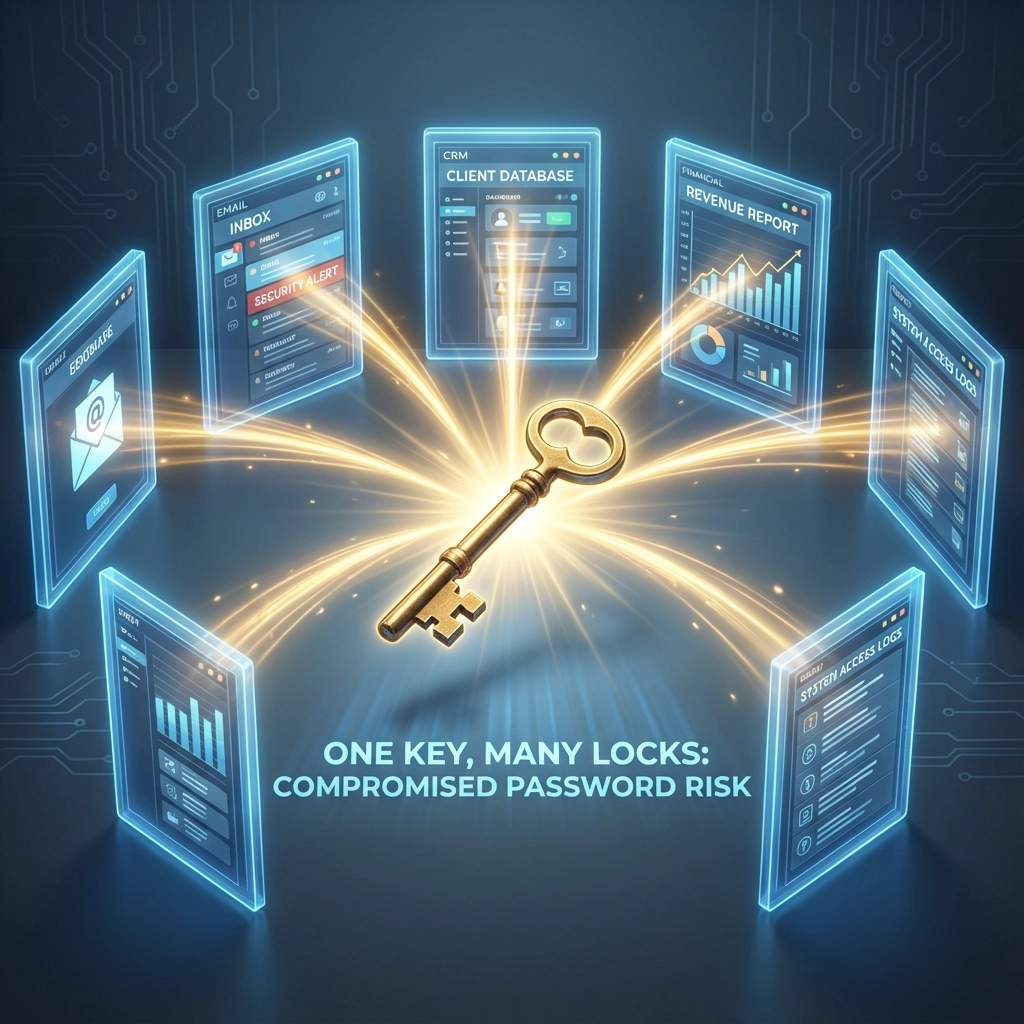
The real danger lies in what security experts call "the blast radius." When hackers gain access to one system with recycled credentials, they systematically test that same password against your email server, financial platforms, customer databases, and backup systems. Within minutes, a single password can expose everything from payroll data to client contracts.
The Fix That Actually Works
Deploy a business-grade password manager like Keeper across your entire organization. These tools eliminate the core reason people reuse passwords: the impossible task of remembering dozens of unique, complex credentials.
Here's what changes immediately: instead of your team struggling to remember "Blackhawks2024!" for everything, the password manager generates and stores completely unique passwords like "K7#mP9@vX2$nW8" for QuickBooks and "R4!gY6%tL3*sN9" for Salesforce. Your employees never see these passwords: they just click the auto-fill button.
Mistake #2: The Predictable Pattern Trap
"But we do use different passwords!" you might be thinking. "Our team adds the year or changes one number each time."
That's actually worse than using identical passwords everywhere. Here's why: cybercriminals have access to billions of previously breached passwords from major incidents like the Yahoo, Equifax, and Marriott breaches. They feed these massive datasets into "rainbow tables": precomputed databases that can crack pattern-based passwords in seconds.
When your employee uses "Blackhawks2023!" for one account and "Blackhawks2024!" for another, hacking algorithms immediately recognize the pattern. If they crack one variation, they instantly know to test the others. The HaveIBeenPwned database currently contains over 17 billion compromised accounts, and sophisticated cracking tools can process millions of pattern combinations per second.
The Reality Check
Those "clever" modifications employees think they're making? They're the first things hackers test:
- Adding the current year
- Replacing 'a' with '@' or 'e' with '3'
- Adding exclamation points
- Using keyboard patterns like "qwerty123"
- Incorporating company names or industry terms
Modern cracking software exhausts these variations faster than you can type them.
The Professional Solution
Password managers generate truly random passwords that don't follow human patterns. Instead of "BlackhawksFan2024!," you get "K7mP9vX2nW8gL4jS": completely unpredictable strings that have never appeared in any breach database. Even if one account gets compromised, attackers can't reverse-engineer a pattern to access your other systems.
Mistake #3: The Dangerous Convenience of Password Sharing
Walk through your office and you'll probably find passwords written on sticky notes, saved in unencrypted spreadsheets, or shared via email and Slack messages. It seems harmless when Sarah needs quick access to the marketing platform or when the team needs to log into the shared vendor portal.
This casual approach creates massive security gaps. Every unencrypted password becomes a liability that can persist for months or years in email threads, chat logs, and shared documents. When employees leave the company, change roles, or accidentally forward sensitive messages, those credentials often remain accessible to unauthorized individuals.

The Business-Grade Alternative
The ideal solution to this problem is that every person will have a unique account associated to them in every application they use. This allows every person to be given only the permissions they need using the "principle of least privilege" which means a person is only given the permissions needed to an application that allows them to accomplish their work. It also means a single compromised password is not the key to the entire application.
Enterprise password managers solve sharing without sacrificing security because everyone can set a secure password for their own account without the fall back of using a default password that everyone else uses. If a separate account isn't possible in a particular application then you can use password sharing. You can grant specific team members access to the "Marketing Tools" vault or share vendor credentials with your accounting department without ever revealing the actual passwords. When someone leaves the company or changes roles, you simply remove their access: instantly and completely.
This approach also creates an audit trail. You know exactly who accessed which systems and when, which proves invaluable during security reviews or compliance audits.
Mistake #4: Treating Multi-Factor Authentication Like an Optional Extra
Here's a question that should keep you awake at night: which of your business applications don't require multi-factor authentication (MFA)? If the answer is "any of them," you're essentially leaving your front door unlocked.
Many businesses implement MFA for their most obvious targets: email and financial systems: while ignoring equally critical applications. Your project management tool might contain confidential client data. Your CRM holds sensitive prospect information. Your file-sharing platform stores proprietary documents. Each unprotected system represents a complete security failure waiting to happen.
Microsoft reports that MFA can block 99.9% of automated attacks, yet many organizations still treat it as an inconvenience rather than a necessity.
The Non-Negotiable Standard
Enable MFA for every business application that supports it. Period. No exceptions for "low-risk" systems or "internal-only" tools. Modern MFA apps like Microsoft Authenticator, Google Authenticator, or Authy make this process seamless, a quick tap on your phone provides access while keeping attackers locked out.
Password managers make MFA even easier by storing backup codes and recovery information securely. When you need to access systems from a new device or reset your authentication, everything is right where you need it. Additionally, most of the time this step can be completed with auto-fill support from a password manager like Keeper. You simply select your account to login to an application with and it will automatically fill in your username, password and the MFA token so there is no friction to your team when implementing this critical security tool.
Mistake #5: Ignoring the "Iteration Trap"
Perhaps the most subtle but dangerous mistake involves what security experts call "password iteration": making small, predictable changes to existing passwords rather than creating genuinely new ones. This happens when systems force password changes every 90 days, and employees respond by changing "Summer2024!" to "Fall2024!" instead of generating completely new credentials.
This practice is particularly dangerous because it gives organizations a false sense of security. Leadership believes they're enforcing good password hygiene through regular changes, but they're actually making their systems more vulnerable. Hackers who obtain an older password can easily guess the current one using common iteration patterns.
The Modern Approach
Current cybersecurity best practices recommend longer, unique passwords that don't require frequent changes over short, complex passwords that rotate regularly. The NIST Digital Identity Guidelines specifically advise against forced password rotation for this reason.
Password managers make this transition effortless. Instead of employees trying to remember slight variations of old passwords, they get completely random, unrelated credentials for each system. When you do need to change a password (for example, after a security incident or employee departure), the password manager generates a completely new one with zero connection to previous credentials.
The Implementation Reality: Making This Work in Your Business
"This all sounds great in theory, but how do we actually implement it without disrupting operations?"
Start with your most critical systems: email, financial platforms, and customer databases. Roll out your chosen password manager to these applications first, ensuring each gets a unique, strong password and MFA protection. Once your team adapts to this workflow (usually within a few weeks), expand to secondary and then tertiary systems.
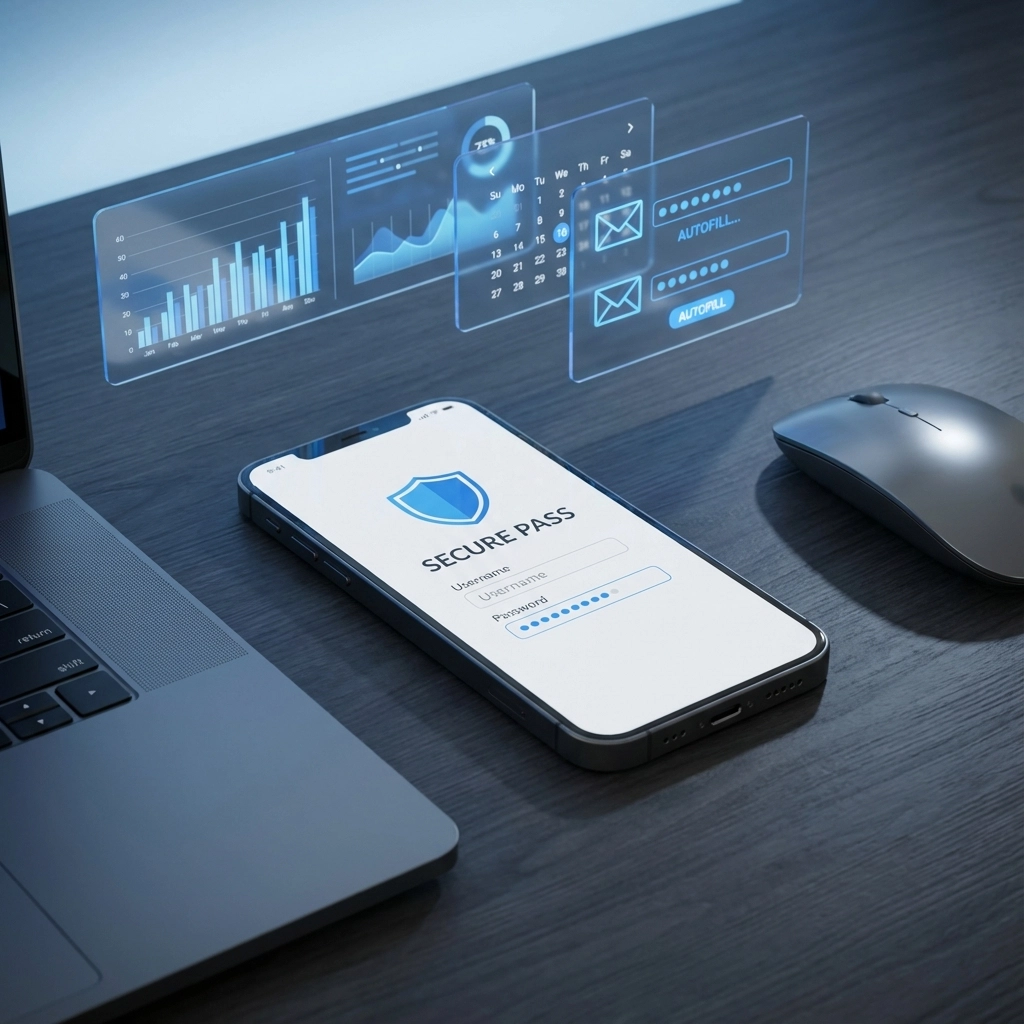
The key is making the transition easier than the old way. Modern password managers integrate seamlessly with existing workflows. Instead of hunting for passwords in email threads or interrupting colleagues for credentials, employees simply click the auto-fill option and continue working.
Beyond Individual Passwords: The Organizational Security Framework
These five password mistakes share a common thread: they treat security as an individual responsibility rather than an organizational capability. The most successful businesses recognize that good password practices require the right tools, clear policies, and consistent enforcement.
Consider implementing these organizational changes alongside your password improvements:
Centralized Access Management: Use your password manager's administrative features to control who can access which systems. When employees change roles or leave the company, you can instantly revoke access without hunting down individual passwords.
Regular Security Audits: Most business-grade password managers include security dashboards that identify weak, reused, or compromised passwords across your organization. Schedule monthly reviews to address these issues before they become problems.
Incident Response Planning: When a breach does occur, password managers allow you to quickly identify and change all potentially compromised credentials. This rapid response capability often means the difference between a minor security incident and a business-ending disaster.
The reality is straightforward: password security isn't just about preventing hackers from getting in, it's about maintaining business continuity, protecting client relationships, and ensuring your organization can operate with confidence in an increasingly connected world.
Your competitors are making these same password mistakes right now. The businesses that address these vulnerabilities proactively gain a significant competitive advantage through improved security, better operational efficiency, and stronger client trust.
Ready to eliminate these password risks from your business? Contact CelereTech to discuss implementing enterprise password management and MFA across your organization. We'll help you transition smoothly while ensuring your team maintains the productivity they need and the security your business deserves.